What Is Age Verification?
The age verification feature in XYZ Protect is specifically designed for adult verification — it answers a single question: is this visitor an adult? It does not determine a visitor's specific age, identify age groups, or collect any demographic information. The verification process confirms that the visitor meets the minimum age threshold required by the regulations in their region, and nothing more.
XYZ's verification system is built with privacy at its core. No personal images, identity documents, or biometric data are retained after verification is complete. All processing happens in memory and is discarded immediately. For full details on how visitor data is handled, review our Data Processing Agreement and Privacy Policy.
Prerequisites
Before configuring age verification, you'll need two things in place:
Cloudflare. Your site must be running behind Cloudflare so the plugin can read the visitor's geographic location from Cloudflare's geo headers. This is how XYZ Protect knows which region a visitor is coming from and whether verification is required. Cloudflare's free plan is sufficient. If your site isn't behind Cloudflare yet, follow the setup instructions at Cloudflare Setup. For more background on why Cloudflare is required, see Why XYZ Age Verification Requires Cloudflare.
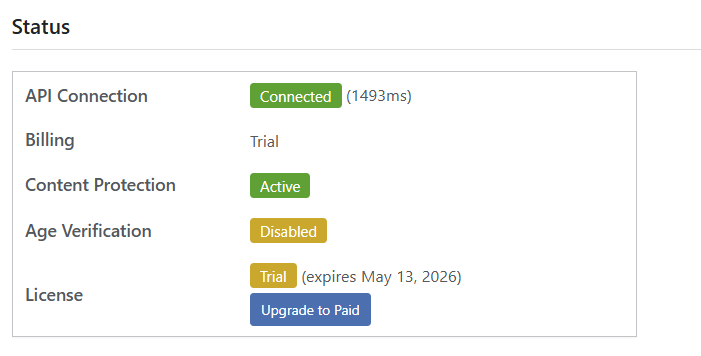
API connection and content protection. This guide assumes you've already installed XYZ Protect, connected to the API, and configured content protection as described in Installing XYZ Protect. You can verify your API connection on the Connection & Status tab — you should see a green "Connected" indicator with content protection active.
MU-Plugin. The MU-plugin is required for age verification to function properly. If you haven't already enabled it during content protection setup, go to the Content Protection tab, scroll to the Advanced section, and check the "Install MU-plugin for enhanced compatibility" box. The MU-plugin ensures that the age gate redirect executes early in the WordPress page rendering process — before other plugins or caching layers have a chance to serve content to unverified visitors.
Age verification is not compatible with page caching plugins. Caching plugins that serve static HTML files bypass PHP execution entirely, which means the age gate redirect never fires. If you're using a page caching plugin, you'll need to disable it for age-gated pages or use a caching plugin that respects PHP execution (WP Super Cache in Simple mode, W3 Total Cache, or Jetpack Boost).
Age Verification Scope
Open the Age Verification tab in the XYZ Protect settings page. The first decision is whether visitors from regulated regions should be age-gated on your entire site or only on specific pages.
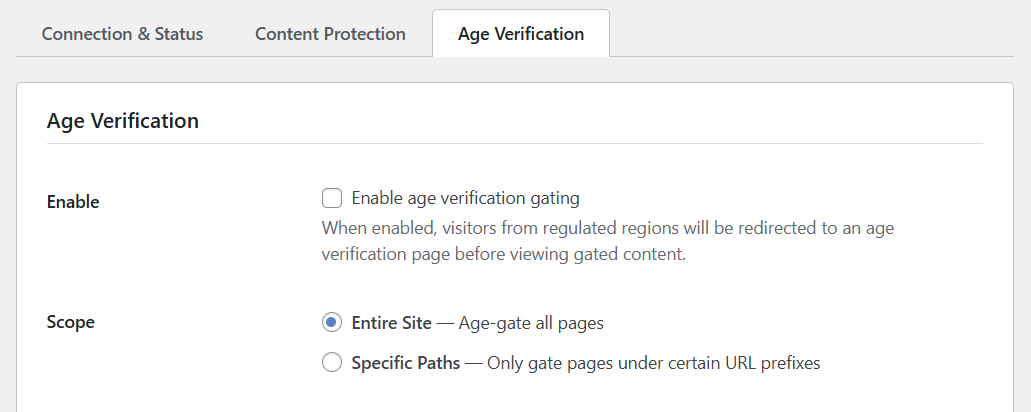
Entire Site age-gates every page on your site for visitors from regions you've configured. This is the typical choice for sites where all content is age-restricted.
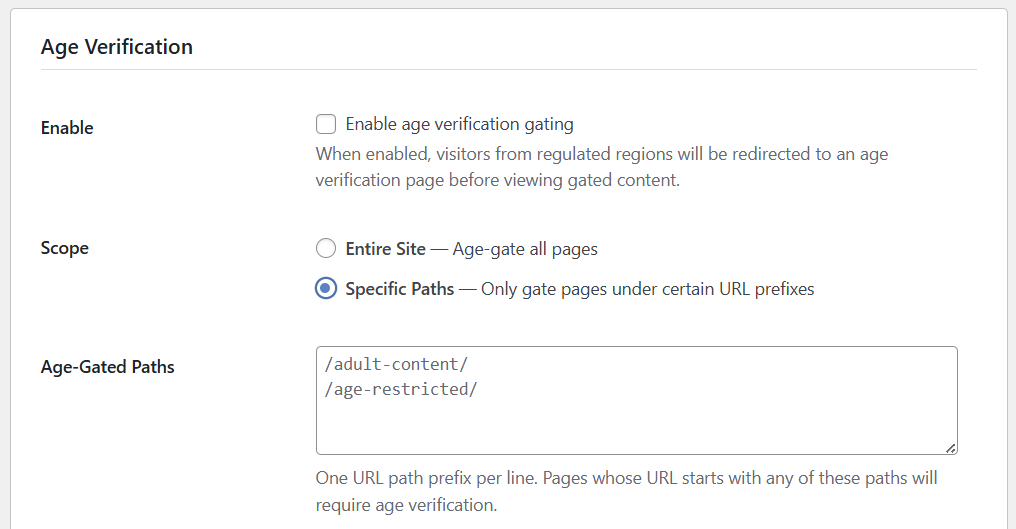
Specific Paths lets you limit age verification to certain sections of your site. Enter one URL path prefix per line — pages whose URL starts with any of these paths will require age verification from regulated regions, while the rest of your site remains accessible without verification.
Fail Behavior, Test Mode, and Bypass Cookies
Scroll down to configure three important operational settings.
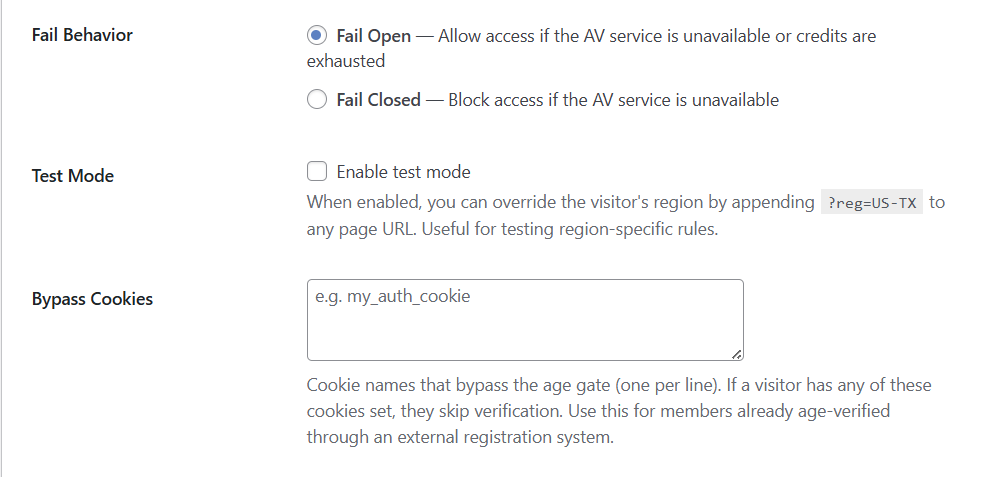
Fail Behavior controls what happens when the XYZ verification service is unavailable or your age verification credits are exhausted. Fail Open allows visitors through — they can access your content without verification until the service recovers or credits are replenished. Fail Closed blocks access entirely when the service is unavailable. Choose based on your risk tolerance: fail open prioritizes availability, fail closed prioritizes compliance.
Test Mode allows you to simulate region-specific age gate behavior without needing actual visitors from those regions. When test mode is enabled, you can append a ?reg= parameter to any page URL to override the detected region. For example, if you've configured a rule for Virginia (US-VA), visiting yoursite.com/any-page/?reg=US-VA will trigger the age gate as if you were visiting from Virginia. The ?reg=US-TX shown in the interface is just an example of the region code format — you'll use whatever region codes you've actually configured in your region rules.
Bypass Cookies provides an integration point for sites that use external registration or verification systems. If a visitor already has one of the listed cookies set (one cookie name per line), they skip the age gate entirely. This is useful if you have members who have already been age-verified through a separate process during account registration.
Cookie Signing Key
The cookie signing key is an HMAC key used to cryptographically sign the verification cookies that XYZ Protect issues to visitors who pass age verification. This prevents cookies from being forged or tampered with.
Click the Fetch from API button to retrieve your site's signing key from the XYZ API.

After fetching, the key will be displayed in truncated form. The full key value is not shown in the admin interface for security purposes.

Save Settings and Age Gate Page
Click Save Age Verification Settings. On first save, the plugin automatically creates a skeleton Age Gate Page — the page that visitors from regulated regions will see when they need to verify their age.
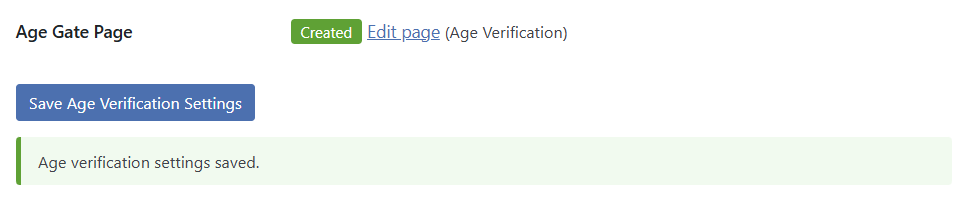
The default page is titled "Age Verification" with a slug of xyz-age-gate. It contains a single shortcode: [xyz_protect_age_gate]. This shortcode renders the verification interface — the face scan, ID upload, or whatever verification flow is required by the visitor's region and tier.
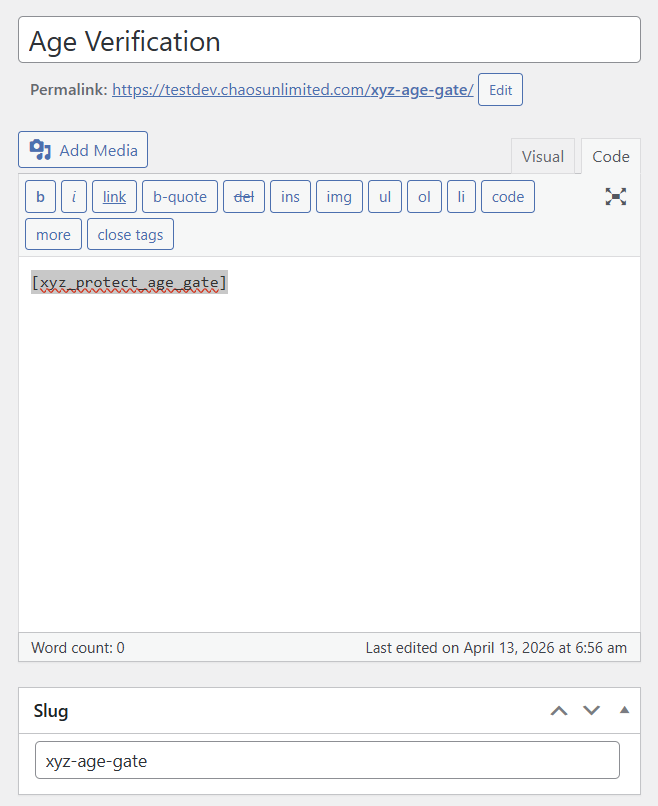
You can customize the page content above and below the shortcode. Add your site's branding, explanatory text, privacy notices, or any other content that helps visitors understand why verification is required and what to expect. The shortcode itself handles the entire verification flow.
Defining Region Rules
Verification Tiers
XYZ uses a two-tier verification system. Tier 1 is a face-based liveness check — the visitor completes a brief face scan that confirms they are a real person and an adult. No ID documents are required. Tier 1 is sufficient for regions with an 18+ age threshold. Tier 2 adds government ID document verification with a face match — the visitor uploads a photo of a government-issued ID, and the system confirms the document is valid and matches the person who completed the liveness check. Tier 2 is required for regions with age thresholds other than 18 (such as 21+ for cannabis or alcohol), since a face liveness check alone can confirm adulthood but cannot determine a specific age. Some regions may also require Tier 2 regardless of age threshold based on local regulatory requirements.
With the basic settings saved, it's time to define which regions require age verification. Scroll down to the Region Rules section and click Add Region.
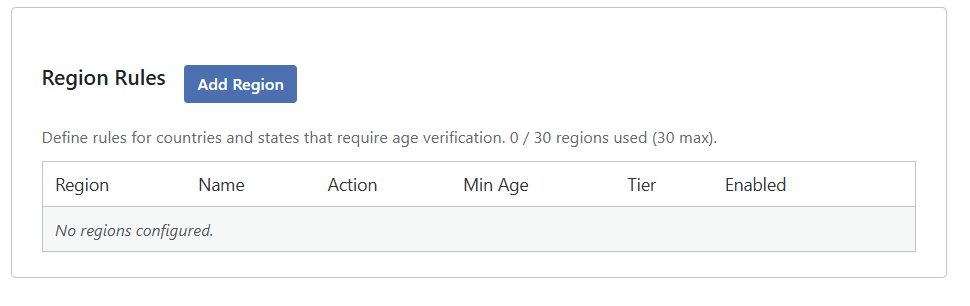
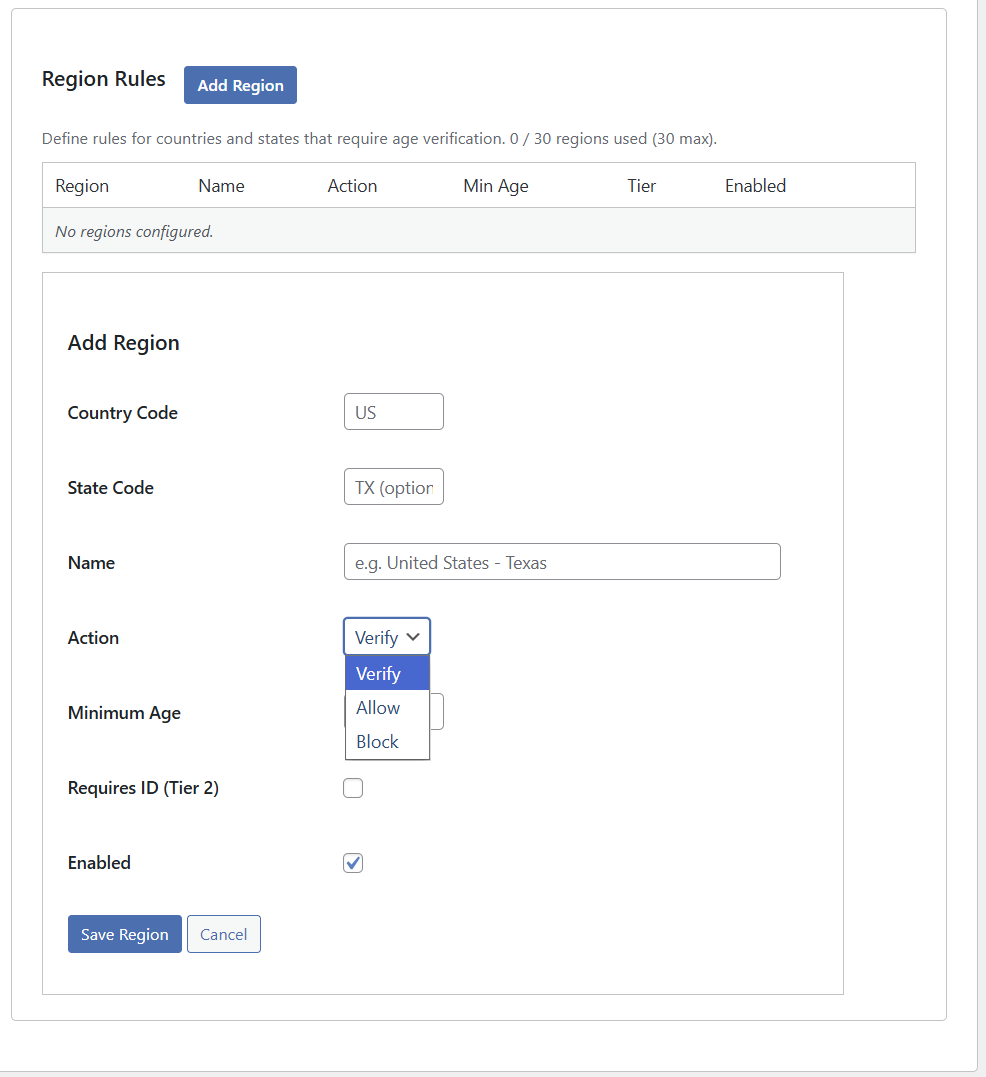
Each region rule specifies:
Country Code — the two-letter ISO country code (e.g., US for the United States, GB for the United Kingdom, DE for Germany).
State Code (optional) — the state or subdivision code for country-level rules that need state-specific granularity. For example, TX for Texas or VA for Virginia. Leave blank to apply the rule to the entire country.
Name — a human-readable label for your reference (e.g., "United States - Texas" or "United Kingdom").
Action — determines what happens when a visitor from this region accesses your site:
- Verify — the visitor must complete age verification before accessing gated content. This is the most common action.
- Allow — the visitor is granted access without verification. Useful for creating exceptions within a broader country-level rule (e.g., verify all of the US, but allow a specific state).
- Block — the visitor is denied access entirely, with no option to verify. Use this for regions where you do not wish to serve content at all.
Minimum Age — the age threshold for the region. The default is 18. Regions with non-18 thresholds (such as 21 for cannabis or alcohol in some jurisdictions) require Tier 2 (ID document verification), since a face-based liveness check alone cannot determine a specific age — only that the visitor is an adult.
Requires ID (Tier 2) — when checked, visitors from this region must complete full ID document verification (government-issued ID plus face match) in addition to the face-based liveness check. Required for non-18 age thresholds and recommended for regions with strict compliance requirements.
Enabled — toggle individual regions on or off without deleting the rule.
After filling in the fields, click Save Region. The region will appear in the rules table.
You can define up to 30 regions on trial and prepaid accounts. If your compliance requirements exceed 30 regions, contact us to switch to SaaS billing with unlimited regions.
Testing the Age Gate
Before going live, test your configuration:
- Check the Enable age verification gating checkbox near the top of the Age Verification tab if you haven't already.
- Enable Test Mode.
- Save your settings.
- Open an incognito/private browser window and visit any page on your site, appending
?reg=followed by a region code you've configured. For example, if you added a rule for US-VA, visityoursite.com/?reg=US-VA. - You should be redirected to your age gate page with the verification interface.
- After confirming everything works, disable Test Mode and save settings again.
Without test mode enabled, the plugin uses Cloudflare's geo headers to detect the visitor's actual region. Test mode is strictly for development and QA — never leave it enabled in production.
Trial Credits and Usage Stats
The XYZ Protect trial includes 100 free age verification credits — enough for setup testing and initial configuration. Each Tier 1 (face liveness) verification uses one credit. Each Tier 2 (ID document) verification uses two credits (one for the liveness check, one for the document verification).
You can monitor your credit usage and protection stats on the Connection & Status tab.
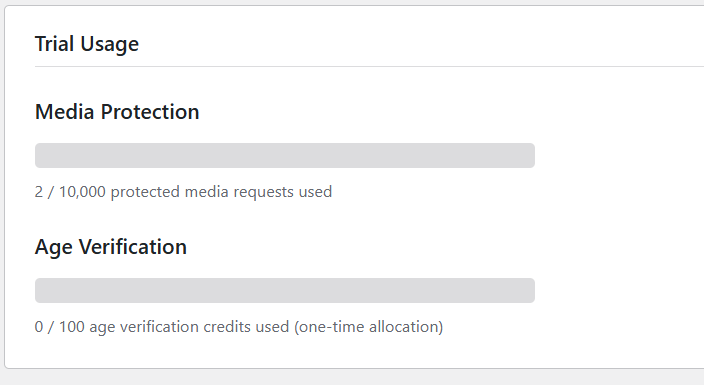
When your trial credits are exhausted, behavior depends on your Fail Behavior setting: fail open allows visitors through without verification, fail closed blocks access until credits are replenished.
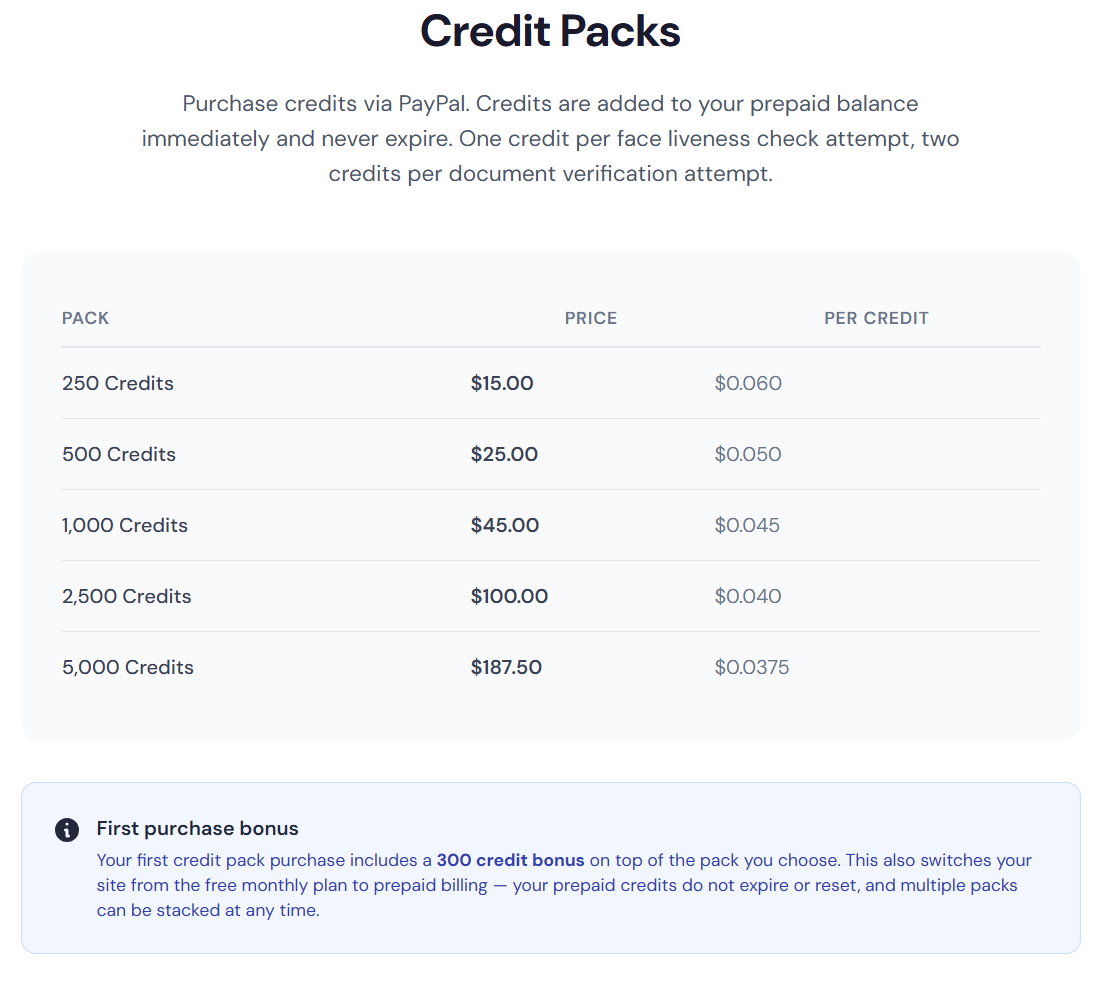
Additional credits can be purchased at xyzinc.com/credits. Credit packs range from 250 to 5,000 credits, with volume discounts at higher tiers. Your first credit pack purchase includes a 300 credit bonus on top of the pack you choose, and switches your site from the trial to prepaid billing. Prepaid credits never expire and multiple packs can be stacked at any time.
Next Steps
With age verification configured, your site now combines two layers of protection: content protection ensures media files are only accessible through your site's secure delivery network, and age verification ensures visitors from regulated regions have proven they are adults before they can view any content.
From here, you might want to:
- Customize your age gate page with your site's branding and messaging
- Add additional regions as regulations evolve in new jurisdictions
- Review the Cloudflare setup to ensure geo headers are configured correctly for automatic region detection
- Purchase credits if you're ready to move beyond the trial allocation
For questions or support, visit support.xyzinc.com.